Make the instructions yours.
Rename steps, add context and mark up screenshots with arrows, callouts and blur. Review what was captured before you share it.
Explore the editorBuilt for Windows
Create step-by-step guides as you work. Thoth captures the screenshots and instructions, ready for you to edit and share.
Guide
Add a user in the admin portal
0 of 4 steps · screenshots taken at each click
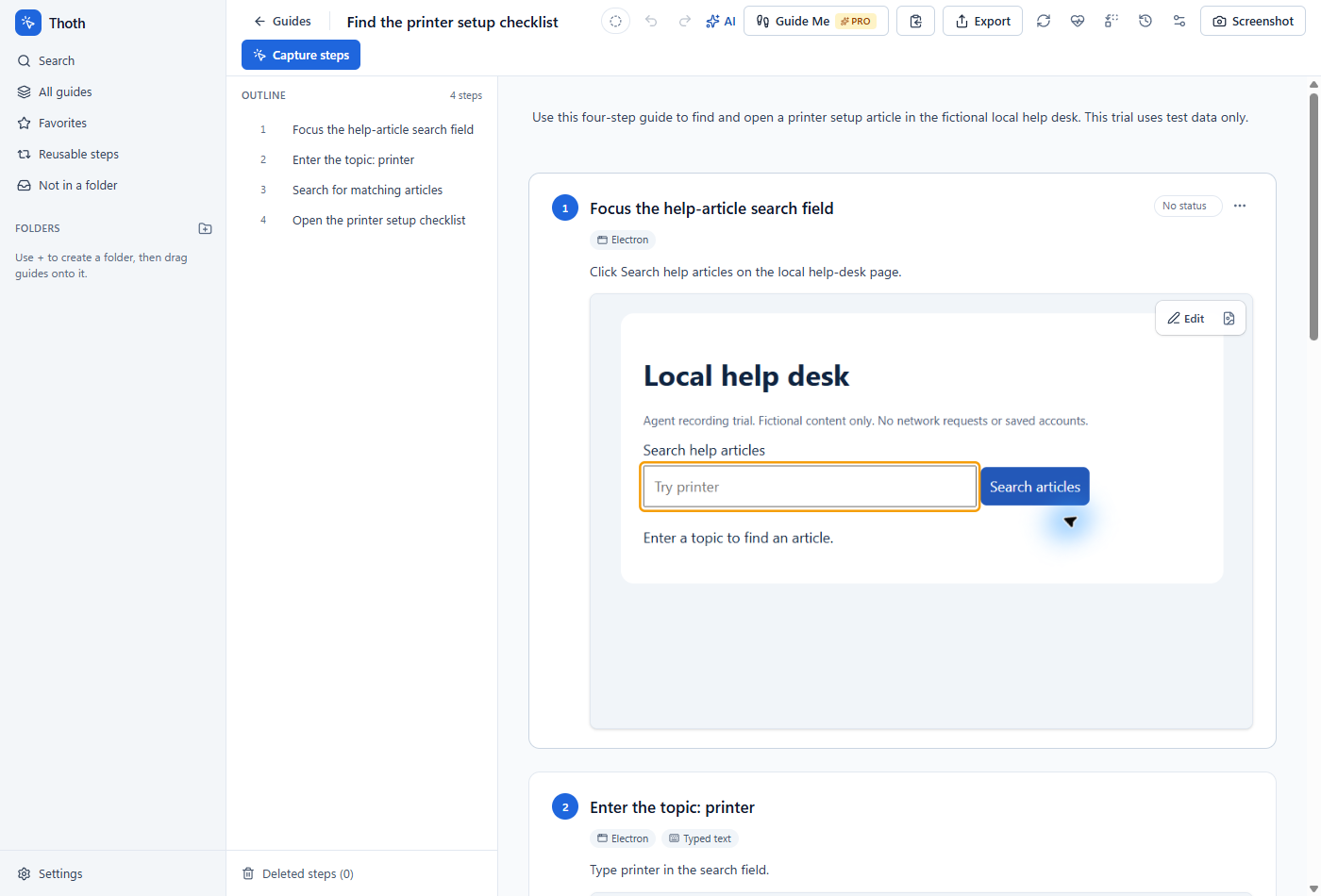
Rename steps, add context and mark up screenshots with arrows, callouts and blur. Review what was captured before you share it.
Explore the editorYour library stays on your PC by default. Optional AI, publishing and cloud features send data when you choose to use them. Review screenshots for private information before sharing.
Read about your dataReplace an outdated screenshot or revise a shared step without starting again. Keep the instructions useful as your software and processes change.
See how updates workPublishing · Pro
Publish to a connected service and update the same page when your guide changes. Your team can keep using the link they already have.
Explore integrations →Document setups, fixes and handovers so the next technician can pick up the job.
Build repeatable procedures, then prepare the right copy for each client.
Turn a demonstrated task into instructions people can return to after the session.
Give people a clear set of instructions instead of writing the same explanation again.
Prepare a procedure with its purpose, responsibilities, revision history and approval record.
Unlimited guides, screenshot editing and PDF, Markdown, JSON and image exports. No account needed for local recording.
Automatic blurring, additional export formats, video and publishing integrations for teams that need more.
Thoth is a Windows app that records the clicks you make in any program and turns them into a step-by-step guide: a screenshot for every step, the name of every control you clicked, and the steps written out. You tidy it up, then export it or publish it.
No. Recording, editing and local exports do not require an account. An account is for optional online extras such as Pro and cloud services. Check the plans page for feature availability.
On your own PC, in Thoth’s library. Optional publishing, AI, cloud backup, sync and support reports can send data when you choose to use them. Review the privacy policy for details.
Text entered in supported fields can be saved in a step, such as Type “Dana Reyes” in “Display name”. Thoth does not save a raw keystroke log (when you record a video it logs your clicks, never keys or typing), and recognized password fields are excluded from typing steps. Screenshots may still contain sensitive information, so review them before sharing. Pro can also blur emails, card numbers and keys that appear in screenshots.
Any program, including ones inside Remote Desktop and virtual machines. You can record the full screen, one window or a region you draw.
Yes. Recording, editing and local exports work without a connection. Update checks and license renewals use the network when available. Publishing to connected services, online AI, cloud backup and sync also need a connection.
Free has no time limit and no guide limit: recording, the editor, PDF, Markdown, JSON and image export, and your own PDF designs. Pro adds automatic blurring, Word, PowerPoint, HTML, GIF, video and interactive demo export, publishing, and refreshing screenshots when software changes.
Thoth AI is Thoth’s own AI, so there is no key to set up. It is paid for with credits, and a credit is one US cent of use. Pro includes 500 a month and Team 500 for every seat, shared by the team. You can buy more any time from your dashboard, in a pack or any amount from 1,000 credits ($10), and the more you buy the less each credit costs: they never expire and they are non-refundable. Free has no monthly credits, but credits you buy work for the writing tools, step writer, summaries and translation. Thoth warns you in the app, and emails your account’s admins, when credits run low. Or skip credits altogether and use your own AI provider.
Only the guide’s title and each step’s title and description, as text. Never screenshots, typed text or notes. Before it is sent, Thoth replaces email addresses, phone numbers, card and ID numbers, API keys and IP addresses with a label such as [email], and cuts links before their query. The window tells you how many it hid and can show you the exact text, and nothing is sent until you choose Review. A password or a customer’s name written in a step is not something Thoth can recognise, so look at what is sent for a guide like that. With your own provider the text goes there; with Ollama it stays on your PC.
No. Your text, voice recordings and, only if Send screenshots is on, screenshots go to Thoth and on to OpenAI (writing and voice), and the answer comes back. Thoth keeps only how much each request used: counts of requests, tokens and seconds of sound, with their cost, so your usage page and credits are right. With your own provider, nothing passes through Thoth at all.
Yes, in beta. It works, but it is new, so read the steps before you share the guide. Drop a screen recording on the library and Thoth makes a step for each change on screen. With Pro and Thoth AI (or your own AI provider) it also writes the steps and an introduction, using what was said in the video when the provider can transcribe speech, and it blurs sensitive information in the screenshots before sending them. If you record with Thoth’s own video recorder instead, Make a guide… gives you a step per click with the click marked, and that works on Free.
To NinjaOne, Hudu, Confluence or Notion. Hosted help centers on thothdocs.com. Publish again after an edit and the same page is updated, so saved links keep working.
Try recording, editing and exporting in the browser demo.
 NinjaOne
 Confluence
 Notion
 Hudu