Record the task.
Make it a guide.
Capture screenshots, write the steps and share the result. Start with Free; features marked Pro are included with Pro, and those marked Team with Team, which also has everything in Pro.
Record
Capture the task as you do it.
Work through the process in your app. Thoth captures screenshots and writes step titles from the controls you use.
Click capture
FreeFull screen, one window or a region you draw. The screenshot is taken the moment you press, before the app reacts.
Steps that name the button
FreeThoth reads the name of the control you clicked, so steps say Click “Save”, not Click here.
Typing becomes steps
FreeFor example: Type “invoice” in “Search”. Text entered in supported fields can become instructions. Thoth does not save a raw keystroke log, and recognized password fields are excluded from typing steps.
Works over remote sessions
FreeA compatibility mode records inside virtual machines, Remote Desktop and screen shares.
Record a video of your screen
FreeRecord a screen or a window, with or without your microphone, then preview and save an MP4. If Thoth closes mid-recording, the video recorded so far can be recovered for a week.
Make a guide from your recording (beta)
FreeBeta: check the steps before you share. After recording a video, choose Make a guide…: Thoth logs your clicks while it records (never your typing) and builds a step for each one, with the click marked and the control named.
Hotkeys and timers
FreePause, capture now, take a timed screenshot, or capture only while a key is held.
Screenshot toolsClick here
ThothClick “Save”
Edit
Turn the recording into clear instructions.
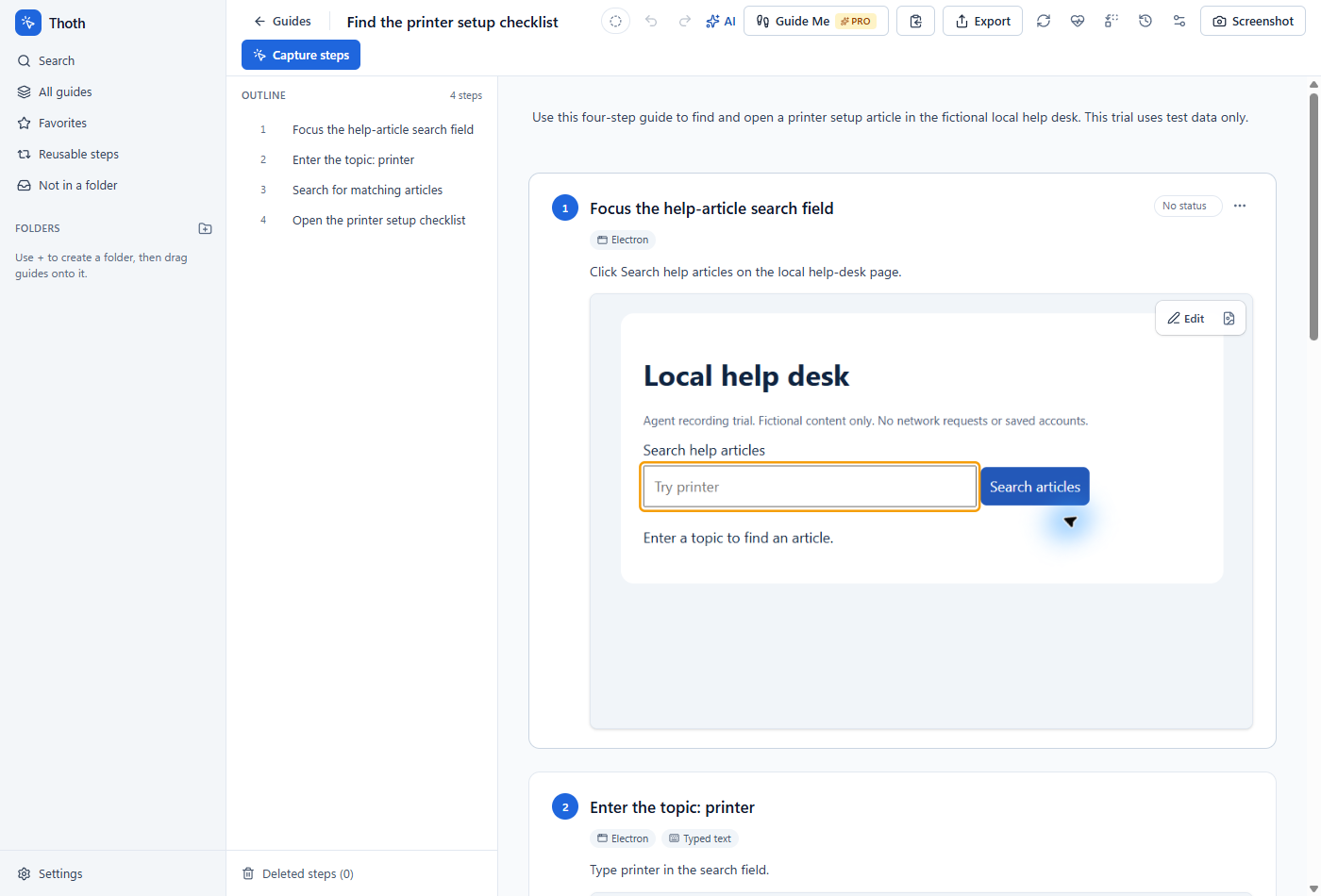
Edit titles and instructions alongside the screenshots. Use the outline to move between steps and Ctrl+K to find commands.
Screenshot editor
FreeArrows (straight or curved), boxes, callouts, keyboard keys, icons, spotlight, magnify, crop, rotate, frames and color adjustments.
Reusable steps
FreeKeep the sign-in steps in one place. Change them once and every guide that uses them updates.
Find and replace across guides
ProChange a product name, link or wording in every guide at once, with a preview of each match and a saved version to undo.
AI writing tools
FreeImprove, shorten or fix any text with your own AI provider (including a local model through Ollama), or with Thoth AI credits you buy.
Voice dictation
FreeSpeak a step’s description instead of typing it.
AI step writer
ProTitles and descriptions written from each screenshot, plus a guide summary and whole-guide translation. Pro includes 500 Thoth AI credits a month, and Free can use it with credits bought.
AI instructions per guide
ProTell the AI about one guide’s audience or product names, on top of your instructions for every guide.
AI guide review
ProA read-through of the whole guide before you share it: unclear steps, anything missing, steps out of order, and a control called two different names. Only text goes, never screenshots, with emails, numbers and keys replaced first. Free can use it with credits bought.
Branching steps
Pro“If you see an error, go to step 7”, in documents, demos and walkthroughs.
Import old documents
FreeTurn existing Word files, PDFs and screen recordings into editable guides.
AI guide from a video (beta)
ProBeta: check the steps before you share. Drop in a screen recording and AI writes the steps from the screens and what was said, an introduction too. Sensitive information is blurred before anything is sent, and you review it all before it’s applied. Uses Thoth AI, or your own AI provider (narration needs OpenAI or a compatible server).
Keep it private
Choose what you share.
Your library stays on your PC by default. No account is required to record, and there are no analytics. Optional publishing, AI, cloud and support features can send data you choose to share.
Automatic blurring
ProEmails, phone and card numbers, API keys and password fields are found and blurred as you record, or in one click.
Blur, pixelate and redact
FreeBlur, pixelate or black out anything by hand, and spotlight or magnify what matters. Redactions are burned in on every export.
Search inside screenshots
ProFind the guide that shows “Billing → Invoices” even if no one typed those words.
- Card number
- API key
- Password field
Export and publish
Send the guide in the right format.
The same guide goes out as a polished document, a walkthrough or a page in the tools you already use.
PDF with your design
FreeDesign your own cover, headers, footers and SOP sections, with a live preview. Your logo on the cover is free.
Markdown, JSON and images
FreeFor wikis, tickets and your own tools.
Copy into an email or ticket
FreePaste a whole guide into Outlook, Word or a ticket with its numbering, notes and screenshots.
GIF
ProAn animated walkthrough of the steps, for chat, tickets and docs.
Word, PowerPoint and HTML
ProEditable documents, slides and web pages, with layout options suited to each format.
Video and interactive demos
ProAn MP4 that zooms to each click with captions and a voiceover, or a click-through demo in one HTML file.
Integrations
ProPublish to NinjaOne Documentation, Hudu, Confluence and Notion, and update the page in place later.
Brand kit
ProYour logo, color and fonts on every export at once.
Presets and batch export
ProSave named export settings, and export many guides in one go.
No “Made with Thoth” line
ProExports without Thoth’s name on them.




Keep it current
Keep up with the next change.
Software changes. Guides that can be refreshed in minutes stay useful.
Refresh screenshots
ProClick through the guide again and Thoth retakes each screenshot, keeping your arrows and blurs in place.
Guide Me
ProA live overlay that walks someone through the real app, ringing the next button to press.
Review reminders
ProAsk for a guide to be checked every month, quarter or year, and see which are due.
Version history
FreePreview and restore earlier versions. Free keeps the three newest; Pro keeps them all.
Approval and sign-off
TeamSend a guide to a reviewer by email or approve it yourself. The revision history and sign-off fill in on the SOP, and an edited guide is flagged until it is approved again.
Retaken todayafter one click-through
Recorded in March
- Ring and blur kept in place
- Review due every quarter
- Version 7 · restore any earlier one
Thoth Cloud
Publish it, back it up, keep it in step.
Optional, and only what you choose: help centers at your own address, an encrypted copy of your library, and guides that follow you between computers.
Help centers on Thoth Cloud
FreePublish folders of guides as a searchable help center at your own address on thothdocs.com, with topics, search and click-through demos. Mark internal guides or folders Keep off websites and they never go on one. Free includes one help center of up to 5 guides.
Private help centers
ProLet in only the people you allow: your team, listed addresses or whole companies, by an emailed code or a Thoth sign-in.
Cloud backup
ProEncrypted copies of your whole library, to bring back on any computer you sign in on.
Cloud sync
ProKeep chosen guides in Thoth Cloud and keep editing them from another computer, with a prompt when both were changed.
Work together
Write and look after guides together.
A team is one workspace with seats. Each person signs in with their own account and gets everything in Pro, plus what only teams need.
Shared guides
TeamEveryone works on the same cloud copy of the team’s guides. Check one out and teammates see who is editing it.
Groups and help-center access
TeamPut people in groups and choose which help centers, or which clients’ help centers, each group can use or manage.
Client portal
TeamFor managed service providers: each client’s contacts open their own help centers with an emailed code, with no Thoth account or seat.
Try it on the next task you have to explain.
Download for Windows